
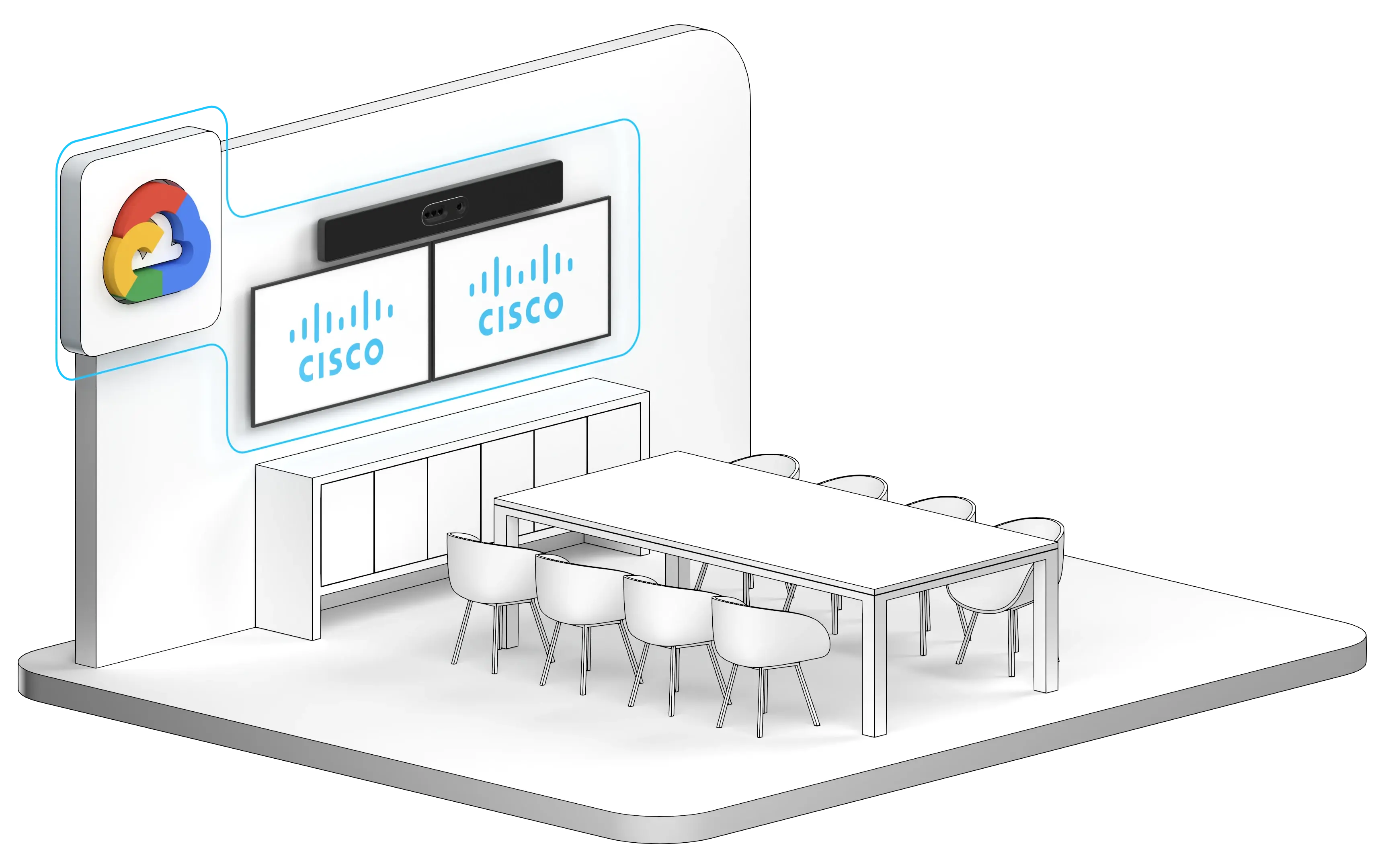
How to Connect a Cisco Device to a Google Meet Meeting
One Button to Push or Join by ID.
Join any way you want
OBTP works regardless of where the Cisco device is registered. Join by ID is available for organizations using Outlook.
This gives organizations a consistent Google Meet joining experience across their Cisco estate without requiring every device to be registered to Webex Control Hub or configured for Cisco Hybrid Calendar.
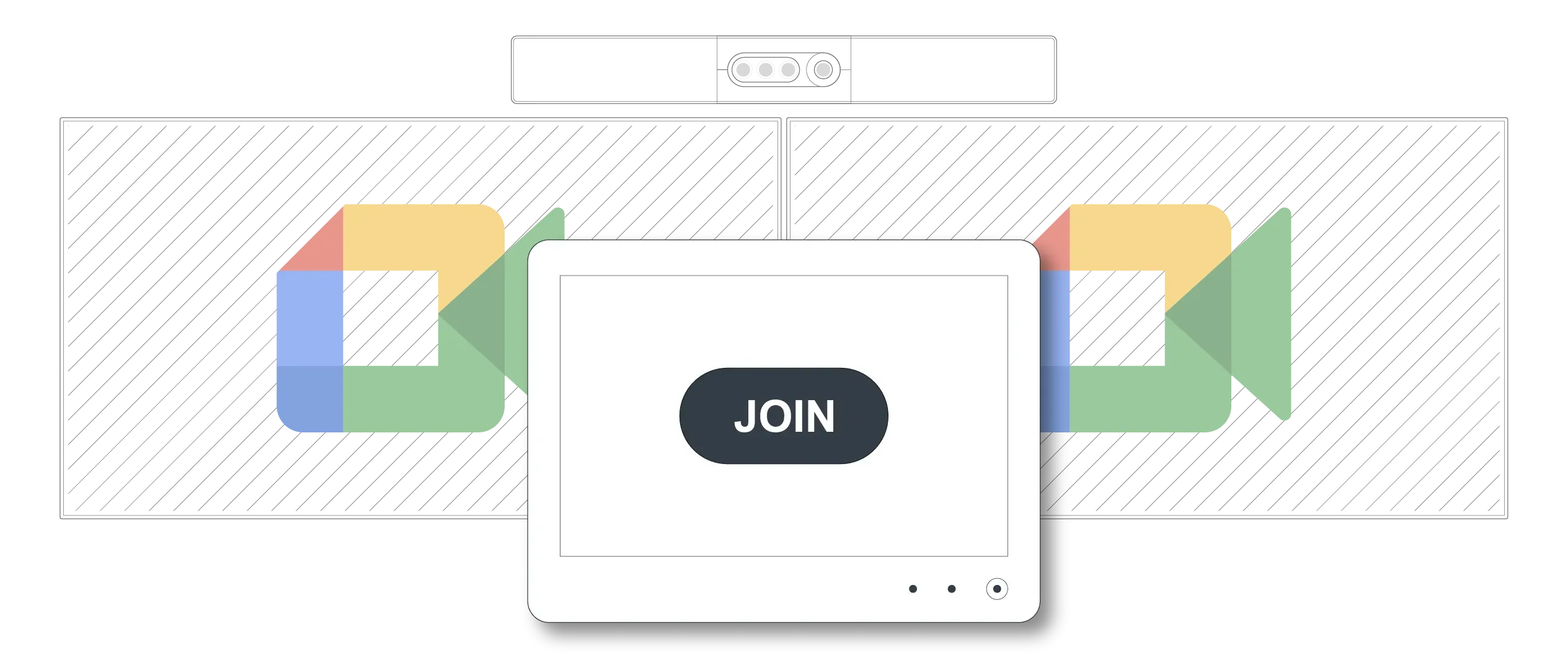
Join with One Button to Push (OBTP)
-
Create or open the Google Meet invitation in your organization's calendar.
- Add the meeting room or Cisco video device to the invitation.
- Send or accept the invitation as usual.
- Shortly before the meeting starts, the meeting details and a Join button appear on the Cisco device.
- Tap Join to enter the Google Meet meeting.
With Synergy SKY CONNECT, this workflow works on supported Cisco video devices regardless of where they are registered. The device can therefore retain its existing registration and management model.
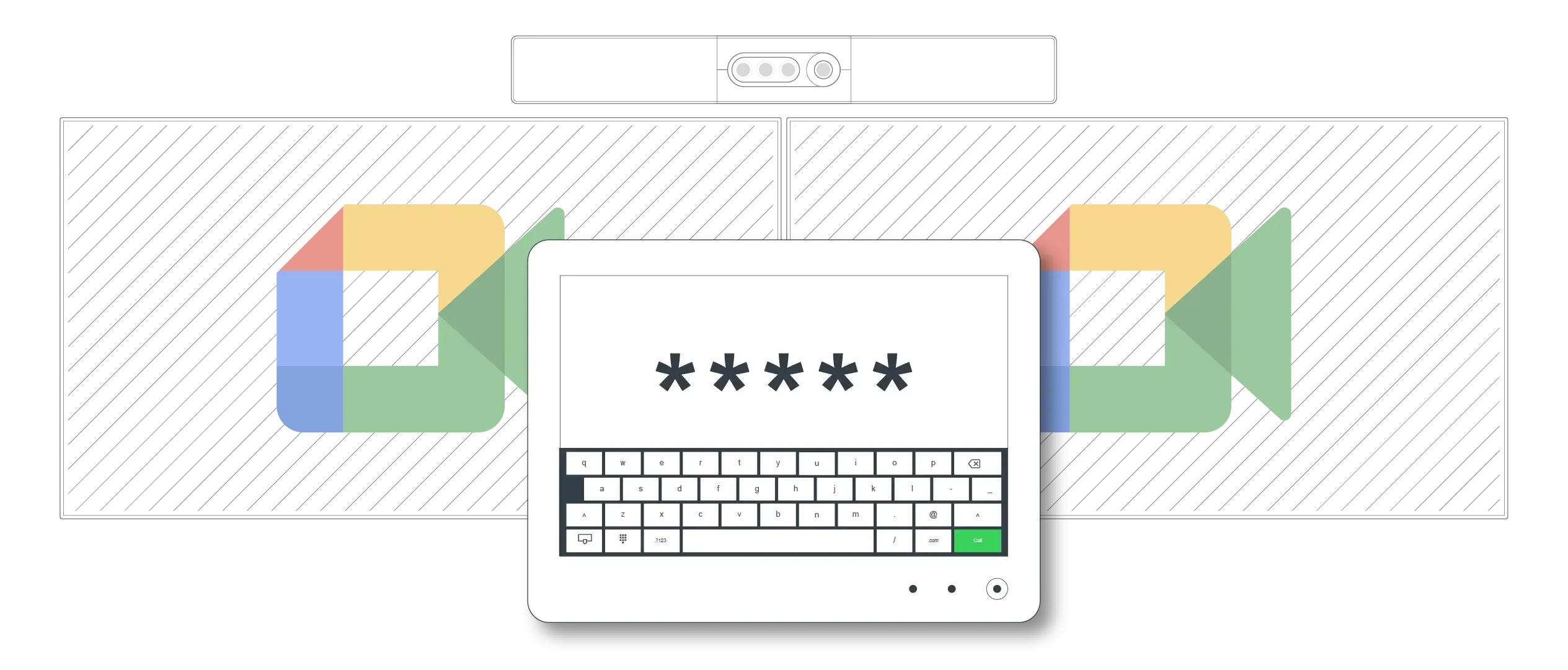
Join by Google Meet ID from a Cisco device
For organizations using Outlook, users can also join an ad hoc or scheduled Google Meet meeting by entering its meeting ID.
- Open the Google Meet invitation in Outlook.
- Find the Google Meet code in the invitation. It is the final part of the meeting link. For example, in `meet.google.com/abc-defg-hij`, the code is `abc-defg-hij`.
- On the Cisco device, tap the Join Google Meeting button.
- Enter the Google Meet code using the Cisco touch controller.
- Tap Join.
Join by ID is useful when the room was not added to the original invitation, when the meeting is ad hoc, or when a calendar-based join button is not available.

Join by Scan
CONNECT GO, also called Scan to Join, is available exclusively from Synergy SKY.
-
Dial your organization’s predefined CONNECT GO URI from the Cisco device.
- Scan the unique QR code displayed on the room screen.
- On your phone, select the Google Meet meeting from your calendar.
- Tap Join. The Cisco device connects to the meeting automatically.
CONNECT GO provides another flexible way to join when the meeting is available in your phone’s calendar.
What makes Synergy SKY CONNECT different?
| Capability | With Synergy SKY CONNECT |
| Join a scheduled Google Meet meeting with OBTP | Yes |
| Use OBTP regardless of Cisco device registration | Yes |
| Join by entering a Google Meet ID | Yes |
| Keep the existing Cisco registration model | Yes |
| Use the same interoperability platform for other meeting services | Yes |
| Scan to JOIN with CONNECT GO | Yes |
Administrator requirements
An administrator must deploy and configure Synergy SKY CONNECT before users can join meetings in these ways. The exact setup depends on the organization's calendar environment, Cisco estate, and network configuration.
Administrators should confirm that:
- the Cisco video devices are supported and can reach the Synergy SKY service. See CONNECT Cloud Deployment Guide and supported devices here.
- calendar integration is configured for OBTP. Microsoft Graph configuration
- the relevant room mailboxes and meeting invitations can be processed. Calendar Permissions (Microsoft)
- the Join by ID interface is deployed to Cisco devices if that workflow will be used. Join By ID
- firewall, SIP, and security policies permit the required connections. CONNECT Cloud Deployment Guide – Video Room Connectivity.
Once configured, users do not need to change how the Cisco devices are registered.
Frequently asked questions
Can any Cisco device join a Google Meet meeting?
Synergy SKY CONNECT supports Cisco video devices across different registration environments. Support applies to compatible Cisco video endpoints, not Cisco phones, routers, switches, or other networking products.
Does the Cisco device have to be registered to Webex?
No. With Synergy SKY CONNECT, OBTP works on supported Cisco video devices regardless of where they are registered.
Can I join without adding the Cisco room to the invitation?
Yes. In an Outlook environment, use Join by ID and enter the Google Meet code from the invitation on the Cisco device. Alternatively, use CONNECT GO without requiring calendar integration for the Cisco device or meeting room.
Where do I find the Google Meet ID?
The meeting ID is the code at the end of the Google Meet URL. For example, the ID in `https://meet.google.com/abc-defg-hij` is `abc-defg-hij`.
Why is there no Join button on the Cisco device?
The room might not have been included in the invitation, the invitation might not have been processed correctly, or the calendar integration might need attention. If your organization uses Outlook and Join by ID is enabled, you can enter the Google Meet code manually. Otherwise, contact your video or collaboration administrator.
The short answer
To connect a Cisco video device to Google Meet with Synergy SKY CONNECT, add the room to the meeting and tap Join when the OBTP button appears. In an Outlook environment, you can alternatively tap Join Google Meeting**, enter the Google Meet ID, and join directly. Both workflows support Cisco video devices without requiring a change to their existing registration.
