
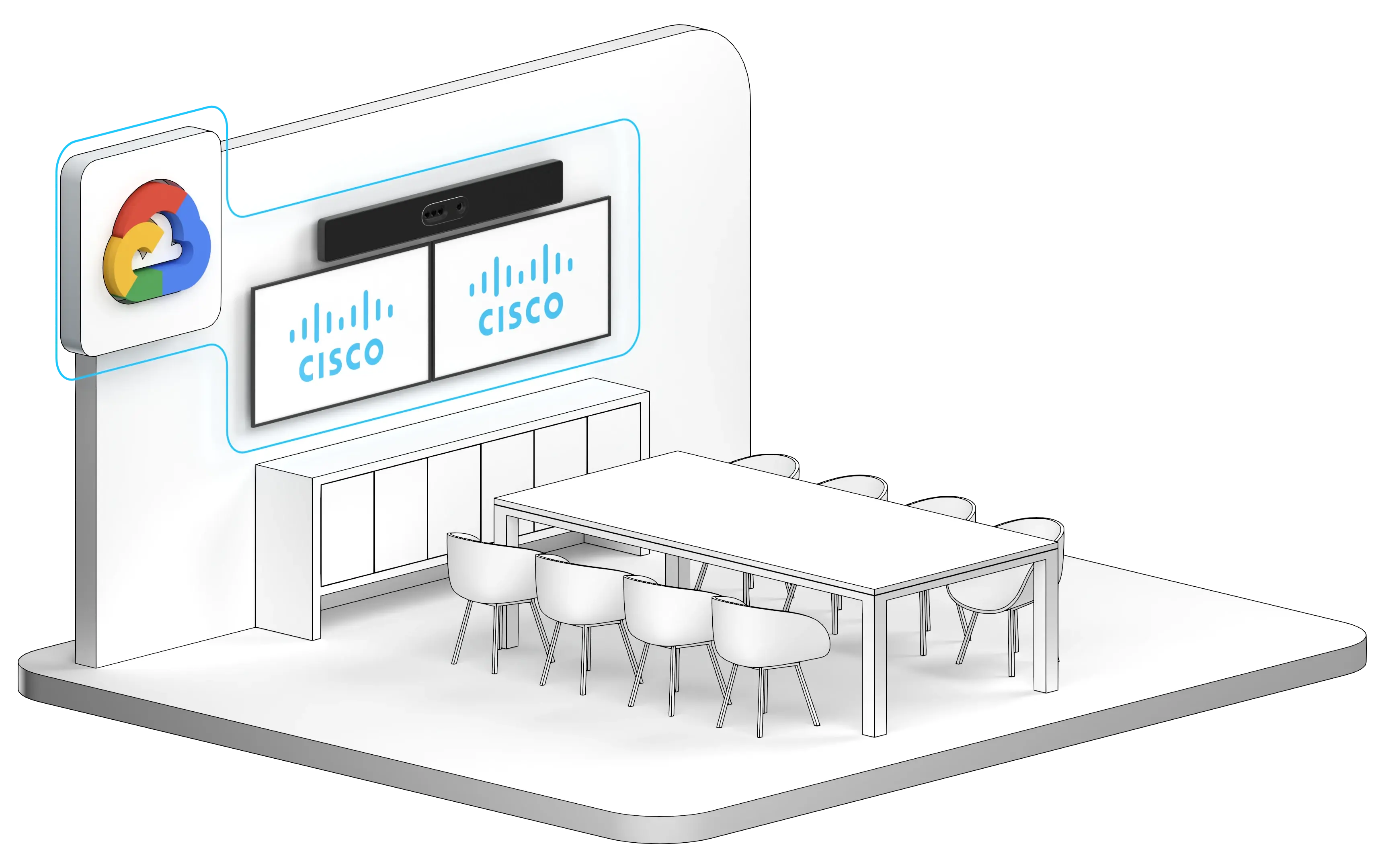
How to Connect a Cisco Device to a Google Meet Meeting
One Button to Push or Join by ID.
Join any way you want
OBTP works regardless of where the Cisco device is registered. Join by ID is available for organizations using Outlook.
This gives organizations a consistent Google Meet joining experience across their Cisco estate without requiring every device to be registered to Webex Control Hub or configured for Cisco Hybrid Calendar.
Join with One Button to Push (OBTP)
-
Create or open the Google Meet invitation in your organization's calendar.
- Add the meeting room or Cisco video device to the invitation.
- Send or accept the invitation as usual.
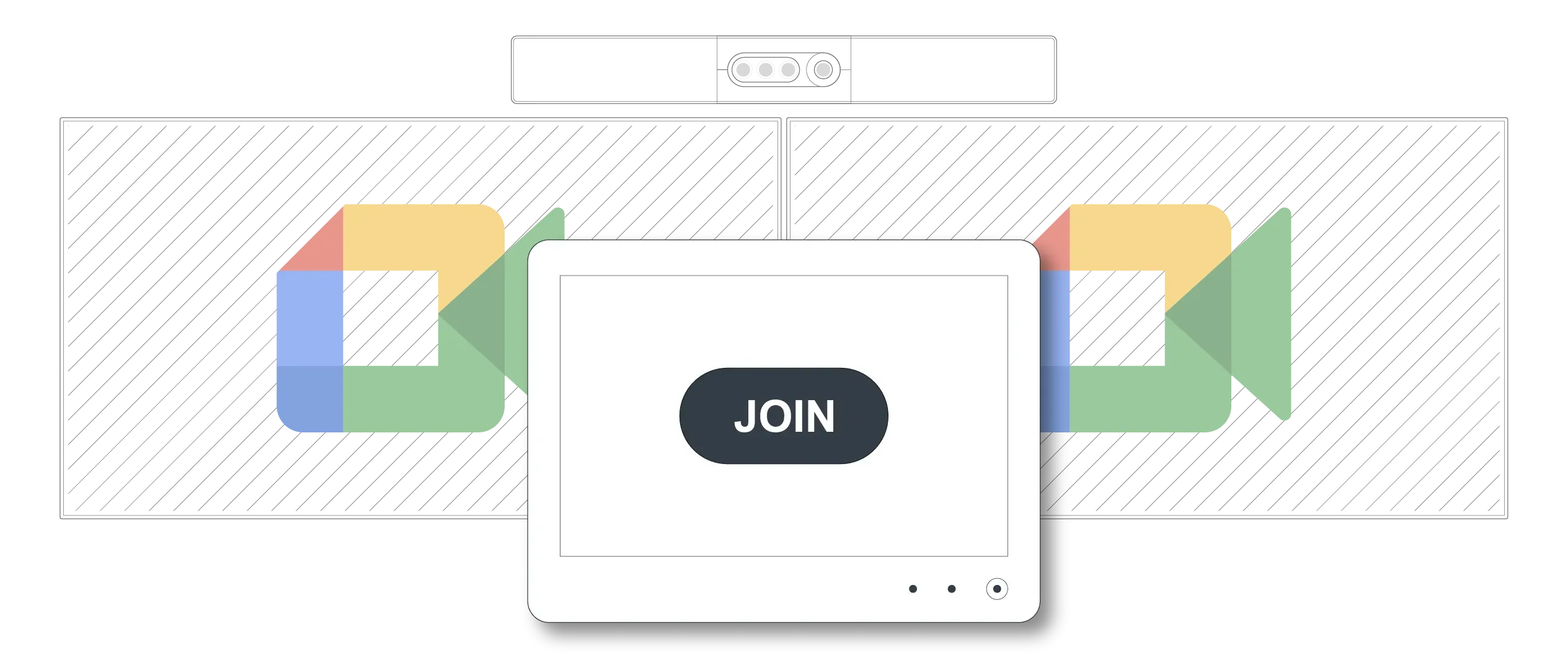
- Shortly before the meeting starts, the meeting details and a Join button appear on the Cisco device.
- Tap Join to enter the Google Meet meeting.
With Synergy SKY CONNECT, this workflow works on supported Cisco video devices regardless of where they are registered. The device can therefore retain its existing registration and management model.
Join by Google Meet ID from a Cisco device
For organizations using Outlook, users can also join an ad hoc or scheduled Google Meet meeting by entering its meeting ID.
- Open the Google Meet invitation in Outlook.
- Find the Google Meet code in the invitation. It is the final part of the meeting link. For example, in `meet.google.com/abc-defg-hij`, the code is `abc-defg-hij`.
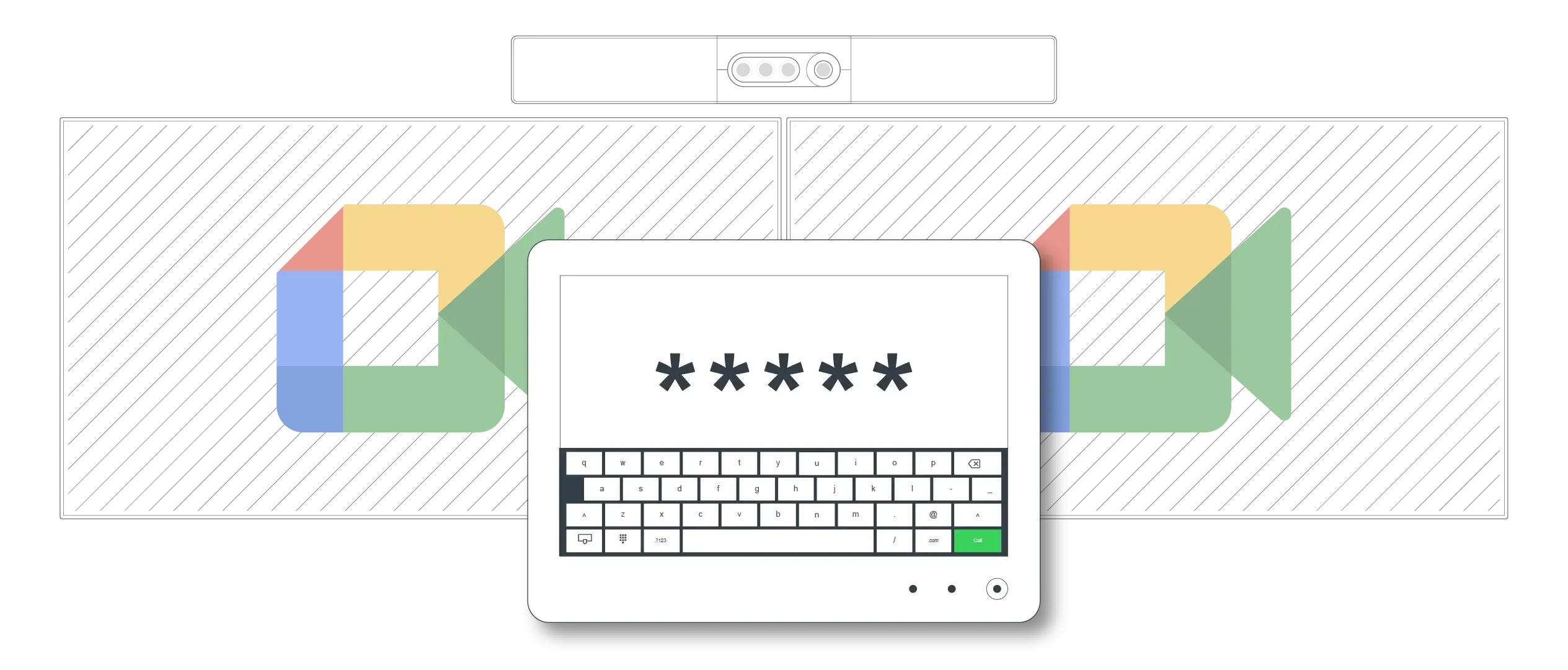
- On the Cisco device, tap the Join Google Meeting button.
- Enter the Google Meet code using the Cisco touch controller.
- Tap Join.
Join by ID is useful when the room was not added to the original invitation, when the meeting is ad hoc, or when a calendar-based join button is not available.

Join by Scan
CONNECT GO, also called Scan to Join, is available exclusively from Synergy SKY.
-
Dial your organization’s predefined CONNECT GO URI from the Cisco device.
- Scan the unique QR code displayed on the room screen.
- On your phone, select the Google Meet meeting from your calendar.
- Tap Join. The Cisco device connects to the meeting automatically.
CONNECT GO provides another flexible way to join when the meeting is available in your phone’s calendar.